The User Task designer allows Pro users to create and edit User Tasks. A User Task, used in a Decision Flow designed with Master Flows, creates a set of "jobs" for the assigned user(s) to complete as part. Usually tasks are assigned to one or more users (and their managers) to complete with instructions and due dates.
The User Task designer in Formulate, allows users to create their own task interfaces, functionality and logic using a combination of HTML, CSS, JavaScript and Pyramid's task API. They can be further extended to work with external applications through their APIs. Saved User Tasks are sharable, reusable and governable like all other elements in the Pyramid Catalog.
Note: This feature requires specific licensing options.
- Click for more details on how a User Tasks can then be used as User Task nodes inside a Master Decision Flow.
Building a User Task
Before you begin
To open the User Task designer, open Formulate and select User Task from the available options:
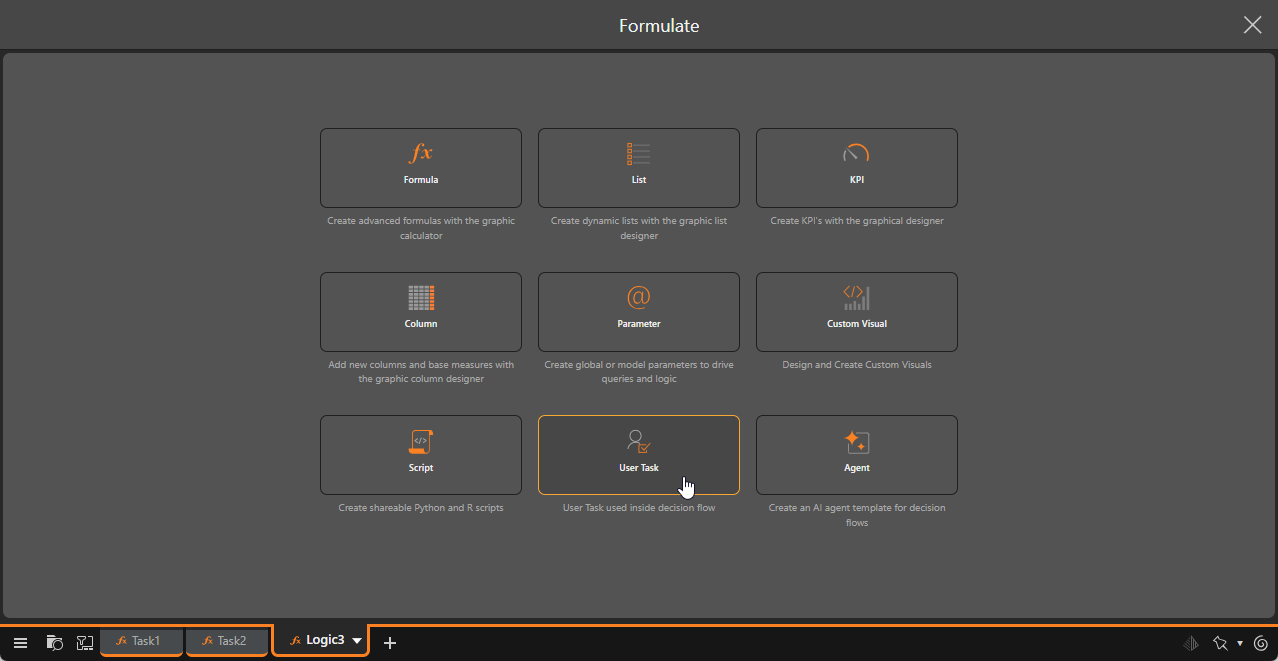
The User Task builder opens.
Step 1: Supply Metadata
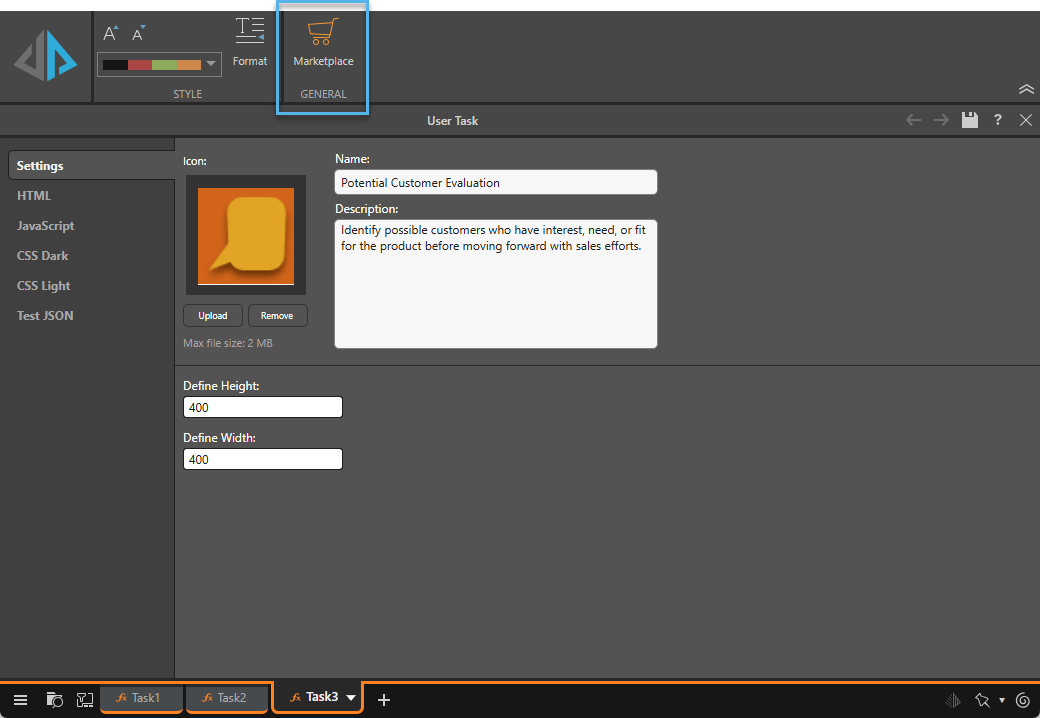
From the User Task builder's Settings page:
- Optionally, start by selecting a built-in template from the Marketplace (blue highlight above).
- From the top of the Settings panel, you can name your User Task, add a description, and upload an icon.
- At the bottom, use the Define Height and Define Width fields to specify the size of the pop-up that the user will engage with to complete the task.
The User Task Marketplace includes a few User Task template examples that have been developed by either Pyramid or our Partners. If you select one of the built-in templates, many of the values will be populated across the tabs. You can edit any of these values with your own content as per your requirements.
The Icon will be shown in the Tasks Manager and will help managers reviewing Task Status to understand which task is which at-a-glance. For more information, see User Tasks in the User Task Manager.
These values are the Height and Width in pixels.
You can work through the rest of the User Tasks builder's tabs, starting at the HTML tab.
Step 2: Create your Template
Once you have completed your Settings, you can use the rest of the tabs to create the User Task:
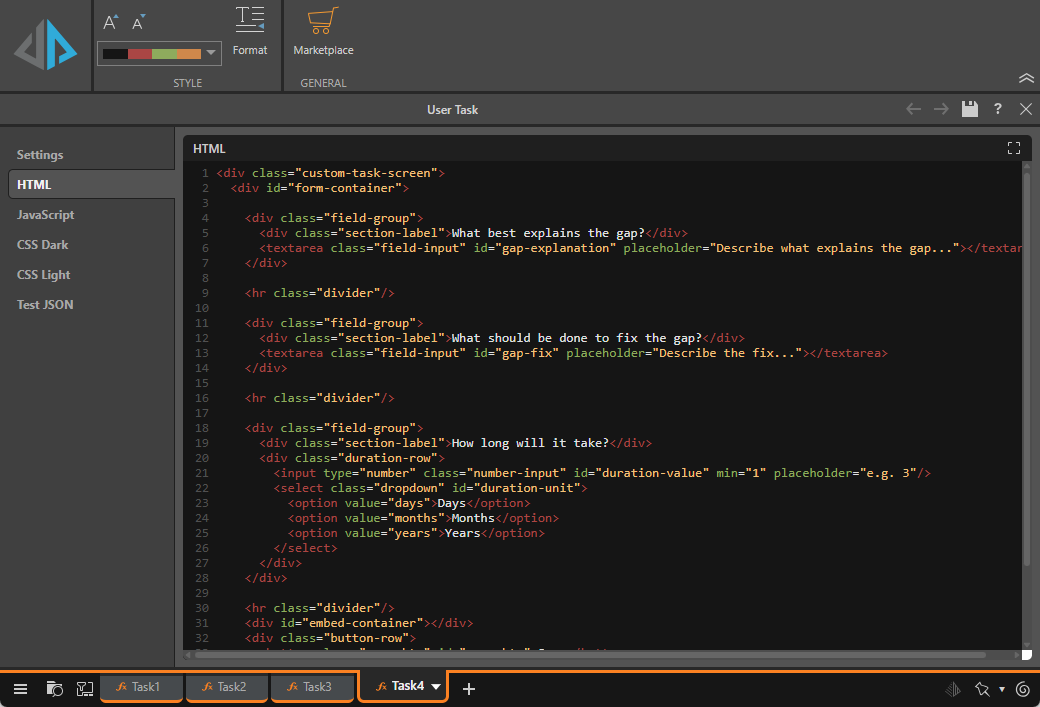
HTML
This tab lets you enter the HTML that defines the layout, styling, and content of your custom User Task pop-up.
JavaScript
This tab lets you enter the JavaScript that drives your User Task. You can add or edit your script here.
 Use the Explain Script function to produce an AI-generated explanation of what the script does (note this is available even if the script was not itself AI-generated). Note: Each time you click the Explain Script button, a new explanation is generated. For more information, see Explain Script.
CSS Dark
Define the CSS classes to use for the User Task pop-up when it is viewed in Dark Mode.
CSS Light
Define the CSS classes to use for the User Task pop-up when it is viewed in Light Mode.
Test JSON
Optional. Supply some test data for your User Task.
Step 3: Save and Preview
Once you've finished configuring the User Task template, click Save at the top-right of the canvas.
Click Run (purple arrow below) or press F2 to run the Preview:
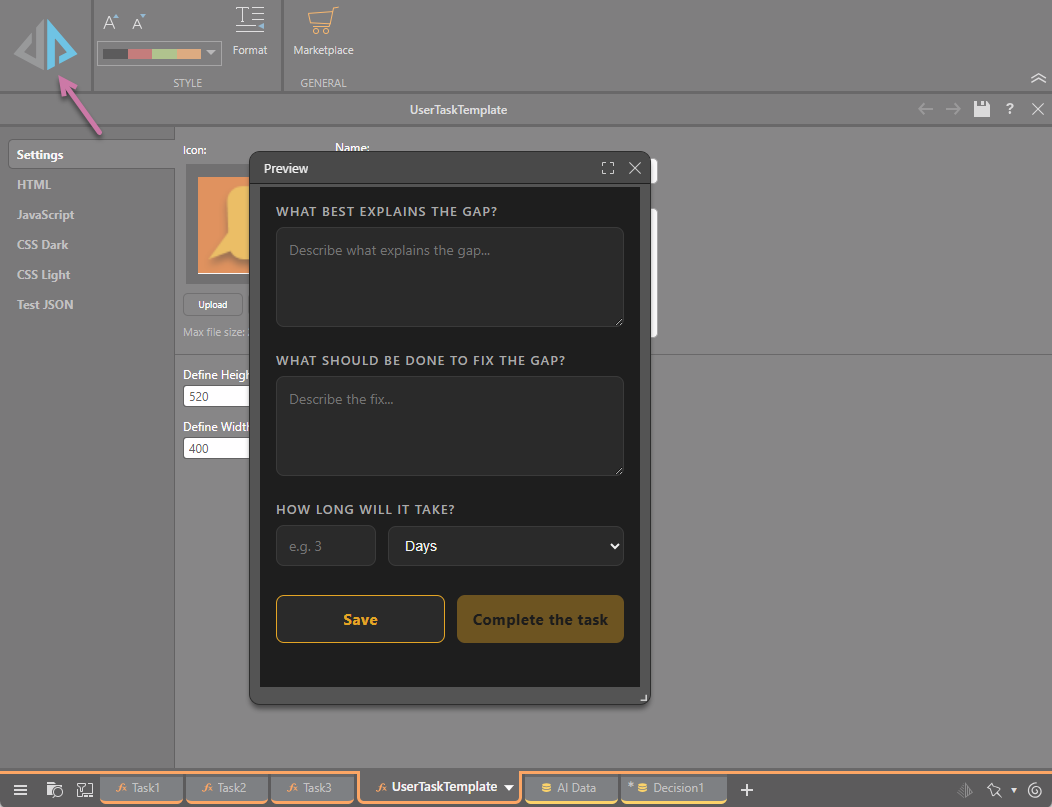
Step 4: Adding a User Task to a Master Flow
Your User Task template is saved to the CMS. You can now select the User Task when adding a User Task node to your Master Flow.
Related information
User Task Marketplace
The User Task marketplace includes several example templates that have been developed by Pyramid or our Partners. These templates are included out of the box with the product deployment and operate like any other normal template included in the product. They represent examples of how to develop a User Task using the API.
To view and select a User Task from the marketplace, click Marketplace in the Ribbon:
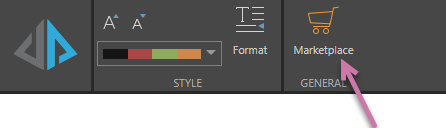
The Marketplace dialog opens. Note that you can search for and use tags to find the User Task you are interested in.
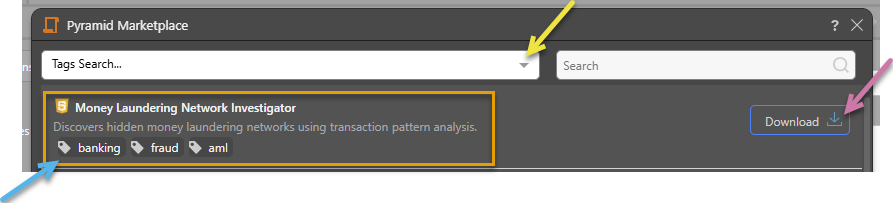
Each template in the Marketplace typically has a name, description, and some tags (orange highlight above). The available options are as follows:
- Download: Click Download (purple arrow) to close the marketplace and populate the builder with the data from your selected template.
- Tags Search... Select one or more tags from the dropdown list (yellow arrow) to show only the templates that include those tags. Note: The tags associated with each template are shown beneath the template name and description (blue arrow).
- Search: Type a search term to search using a contains filter across tags, title, and description.