When a model is built using Smart Model, Direct Model, or Model Lite, it is automatically saved. Its materialized assets, the database and the data model, are generated and stored on the specified server and the model definition file is saved to your My Content folder.
Tip: Once saved, you can open the model file in the full Model Pro app to set security permissions to the materialized model and database, and to save the model file to a different directory and share it with other user roles. For more information, see Save Model Definition Files in Model Pro.
Saving your Model
You can save the model definition file to a different directory in the content manager, and share it with users with other roles, by opening the model in the Model Pro app. To do this, go to the content explorer and select the definition file.
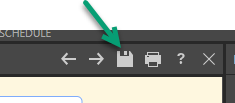
To save your model definition file, click Save in the Status Bar:
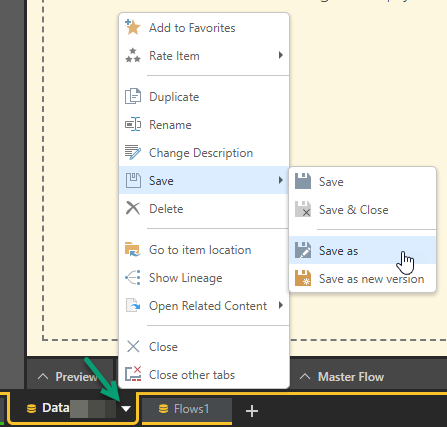
Alternatively, you can open the App Tab menu to select Save, Save & Close, Save as, or Save as new version from this menu:
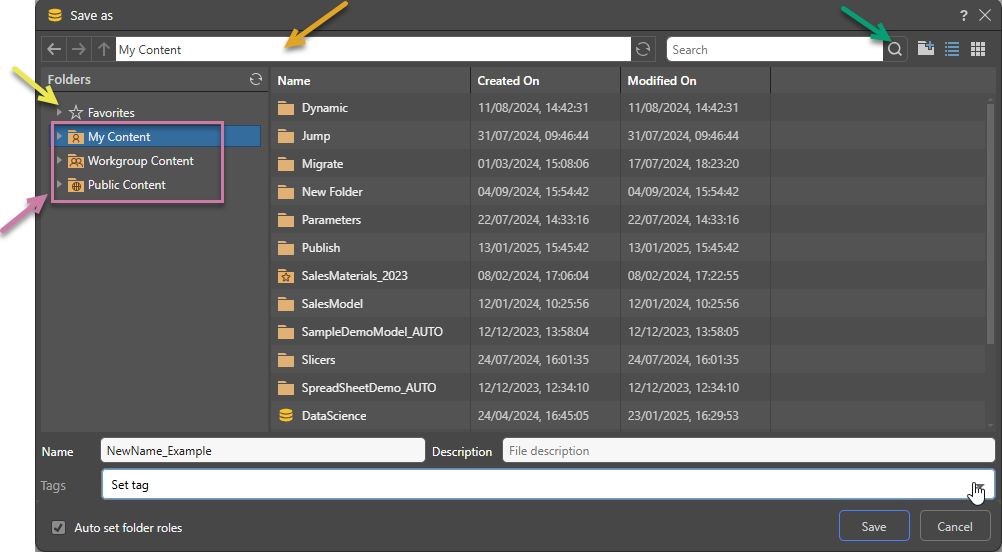
Save As Dialog
Folders
The Folders panel contains a Favorites shortcut (yellow arrow) and the folder tree (purple highlight). Navigate through the tree and select the folder that you want to save your item to.
Favorites
Use the Favorites option to access those folders that you have flagged as "Favorites." The Favorites option is not a folder; it is a shortcut that allows you to go to your most used or preferred folders without having to navigate the tree. When you access a Favorite folder in the Save dialog, you are saving the file to the location in the tree that you flagged as a favorite.
- Click here for more information about Favorites in the Content Manager
Folder Tree
You can choose where to save your content to in the folder structure. You are presented with those folders that you have WRITE access to. Once inside the folder tree, you can also access the folder navigation bar (orange arrow above) to more easily move around and add new folders to the tree on the spot (green arrow above).
- My Content: The content in this domain is private. You should save to this folder when you don't want to share your content with others yet. Note that Admins will be able to see this content.
- Workgroup Content: Group content is made READ and WRITE accessible to other users who share your security roles. Note that full write permissions are granted to users with access to the Workgroup folder.
- Public Content: Public content is made accessible to all user roles DEPENDING on the role security of the folder or item.
- Click here for more details about the folder structures
Note: You will need to manually assign roles to content and decide what kind of access each role will have (read, write, or management). Permissions set from the Save as dialog govern access to the model definition file; click here to learn how to set permissions for the materialized model.
Related information
Creating a Discovery for a Data Model
You can query the materialized data model by selecting it as your data source when opening a new discovery.
- Click here to learn how to open a new discovery for a specified data model.
Materialized Data Manager
The model definition file contains the instructions describing how to execute the Data Flow. This file can be accessed from the My Content folder in the content management system, where it can be opened and edited. Note: Model definition files have a yellow Model icon in the CMS.
- Click here for more information about materialized models and model definitions.
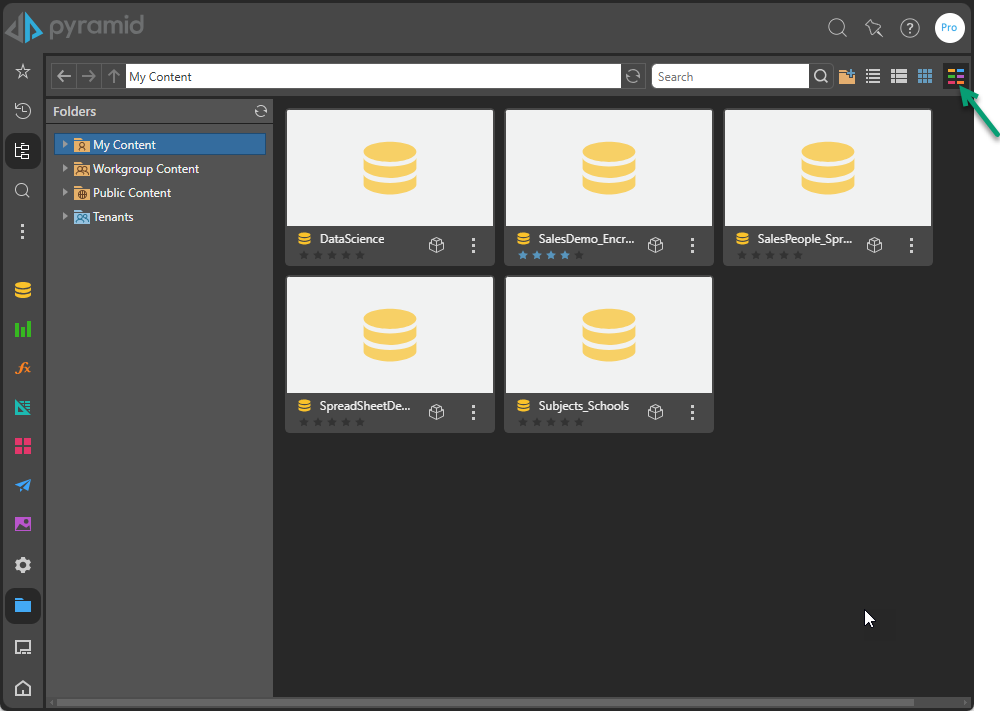
Note: The green arrow on the preceding image shows the filter menu that filters this view by app. In this example, the view has been filtered to only show Model definition files.