The Pyramid Chatbot is an interactive user interface that lets you interact with AI agents to ask analytical or other questions in natural language (NLQ) , using text or speech, and receive a response that creates or changes your discoveries,
You can then interact with the Chatbot responses in a mutli-step, stateful session that remembers your train of thought and responds accordingly - building up your analysis or improving the response to your interrogation.
- At design time, Pro or Analyst users build and analyze their discoveries,
- At runtime, users can interact with any existing reports or presentations using the Chatbot; they can show more data, manipulate content (limiting it to a particular time or grouping by location, team, or customer's gender), change visualizations, attach or remove more elements, and inject new calculations and ML logic.
Note: If your administrator has chosen to use the internal Portable Language Model (PLM), Pyramid Internal, then the Chatbot is only enabled at Design time in Discover and at Runtime in Discover and Present. For more information, see Multiple LLM Engines.
Chatbot pop-up
The Chatbot is a pop-up that allows users to say or write a sequence of questions in natural language that are interpreted automatically and trigger changes to the currently selected visual:
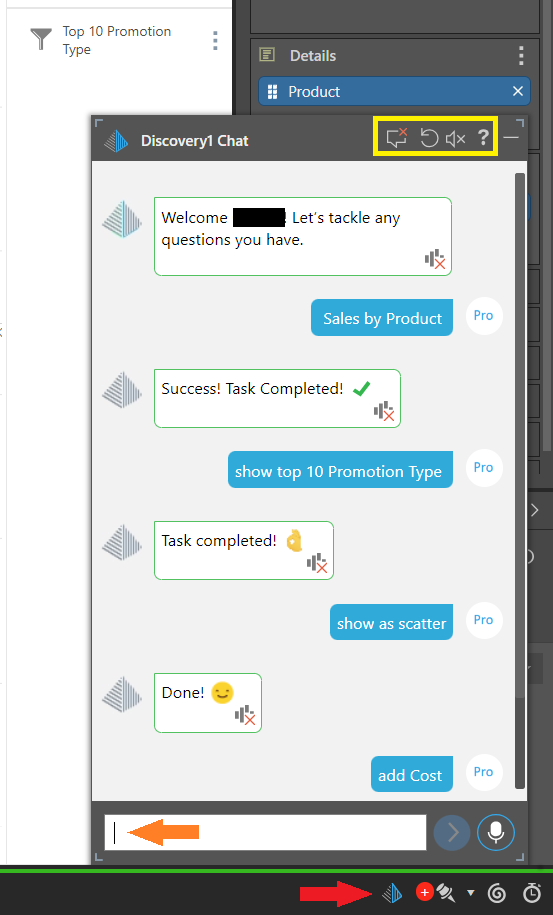
Note: Click Open Chatbot (blue arrow above) to build or analyze data visuals at design time. If you want to open the Chatbot at runtime, you need to run your visual and open the Chatbot from its panel tools.
Open the Chatbot
How you open your Chatbot depends on whether you are a Designer (a Pro or Analyst user building discoveries,
Note: If your administrator has chosen to use the internal Portable Language Model (PLM), Pyramid Internal, then the Chatbot is only enabled at Design time in Discover and at Runtime in Discover and Present. For more information, see Multiple LLM Engines.
Select your Model
If you are building your Publication or Presentation in Publish or Present, you need to select the Data Source as the first step. The available models are displayed in the Chatbot for selection:
- Select a Model: You are initially prompted to select a model. Previously used models are displayed by default.
- More Models: If required, more models can be accessed by clicking this option. You can then select the model from your recent, favorites, or explorer options.
Tip: You can change which model is selected by typing the keyword \data into your Chatbot and selecting the required model.
Chat Session Options
In the panel header there are a few options that relate to your current session (yellow highlight above). For a runtime presentation, these options are as follows:
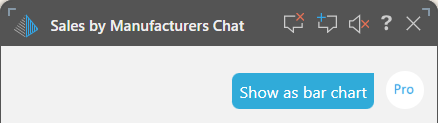
Header icons
|
Function |
Icon |
Description |
|---|---|---|
|
Clear Chat Messages |
|
Clear all the previous chat messages from the Chatbot. This doesn't affect the visual. |
|
Reset |
|
(Design time only.) Discard any unsaved changes made to the current report and reload the "last saved" version of the report from the content system. |
|
New Query |
|
(Runtime only.) Restart the chat with a new blank query. All hierarchies and measures are removed from the visual, allowing you to build a new query from scratch. |
|
Mute / Unmute |
|
Mute or un-mute the speech facility used by the Chatbot. Muting the Chatbot means that you will not receive audible responses to your prompts. Tip: You can choose whether to mute or unmute your Chatbot by default using the Chatbot Audio Response option in your User Defaults. |
|
Close Chatbot |
|
(Runtime only.) Close the Chatbot using the icon to the furthest right. |
|
Minimize Chatbot |
|
(Design time only.) Minimize the Chatbot using the icon to the furthest right. Note: When you reopen the Chatbot, your previous conversation will still be available. |


Move and resize the Chatbot
- Select the Chatbot by its title bar to drag it around the canvas.
- Resize the Chatbot by clicking and dragging the handles at its corners.
Creating your Prompt
The text field (orange arrow in the main image) is where you ask your question (NLQ) or "prompt" your action. You can type your question and either press Enter or click the Run button. Alternatively, you can hold down the Microphone button and just say your question into your microphone.
Formulating a Good Query
Learn how to write a request that describes the changes that you want to make to your discoveries,
Chatbot Functions
Learn how to create effective requests using supported keywords, recommendations, and suggestions. These functions help the Chatbot to understand what you need more quickly.
Text to Speech
If you want to save some time when using the Chatbot to build or analyze your data, you can just ask your question, and Pyramid will use its speech-to-text facility to convert that question into text and submit it to the engine for analysis.
Note: The Chatbot lets you ask multiple questions, and applies the changes associated with each of your questions in a cumulative way. Each additional question adjusts the previous query, regardless of whether the original query was generated by the Chatbot or drawn manually by the user dropping measures into the drop zones.
Understanding the Response and Ongoing Multi-step Exchanges
After your question has been processed, a response will appear in the Chatbot. If audio is enabled, the Chatbot will also read the response aloud. You can play or replay the audio, like results, follow the "next selection," or get the Chatbot to explain the result.
You can continue to have ongoing exchanges with the Chatbot in a multi-step "conversation." Each successive step remembers the entire conversation and keeps the context of all previous aspects as the exercise progresses. See Chatbot responses for more.
Change view
Design time only. When you move between the tabs at the bottom of your page, the Chatbot remains open but changes context. Its content always reflects the history associated with the tab that is currently open.
When you open a tab for an app that does not support the Chatbot; for example, when you click a Model tab; the Chatbot closes. It reopens when you tab to another app that does support the Chatbot.
Note: If your administrator has chosen to use the internal Portable Language Model (PLM), Pyramid Internal, then the Chatbot is only enabled at Design time in Discover and at Runtime in Discover and Present. For more information, see Multiple LLM Engines.
Keyboard Shortcuts
While in the chat text box, different shortcuts are available using the arrow keys:
- Arrow left and right - Moves the cursor through the current text in the text box in the direction signified by the arrow.
- Arrow up and down - When suggestions or type ahead values are shown in the text box, the up and down keys allow you to navigate the list.