Use the options in the Formatting Panel to add context to segment charts by enabling functions like data labels and multi-chart titles. Aside from the common formatting functions, the following formatting options are available specifically for the different types of segment charts: Background Color, Explode and Optimize, Arc Radius, and, for Doughnut Charts, Inner Radius.
Tip: You can also use Quick Styles to apply a set of formatting functions to your chart in one action. For more information, see Segment Chart Quick Styles.
Segment Chart Formatting
This page describes the formatting options available for Segment Charts (where Pie chart, Doughnut chart, Funnel chart, or Pyramid chart is selected from the dropdown list). Other formatting options that can be selected include Report Title, Data Labels, Legend, Plot Area, and Color.
Fill
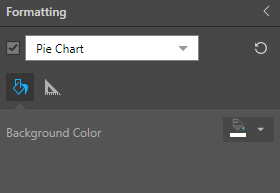
- Background Color: Change the color of the Report Background using the Color Picker tool. This change does not affect the chart background.
Settings
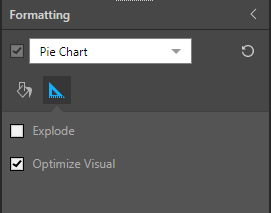
- Explode: Add a division between segments in the chart.
- Optimize Visual: The visual optimization engine in Pyramid is a heuristic that automatically redacts certain parts of a graphical visualization based on the amount of space provided.
Arc Radius
The Radius setting curves the corners of the slices at their outer edge to make them appear rounded. Where the Arc Radius is set as zero, the slices have angled corners where they meet. For any other radius value, the affected angles are curved to a greater or lesser degree depending on the given value.
- Click here for more information about the Arc Radius setting
Inner Radius (Doughnut Ring Thickness)
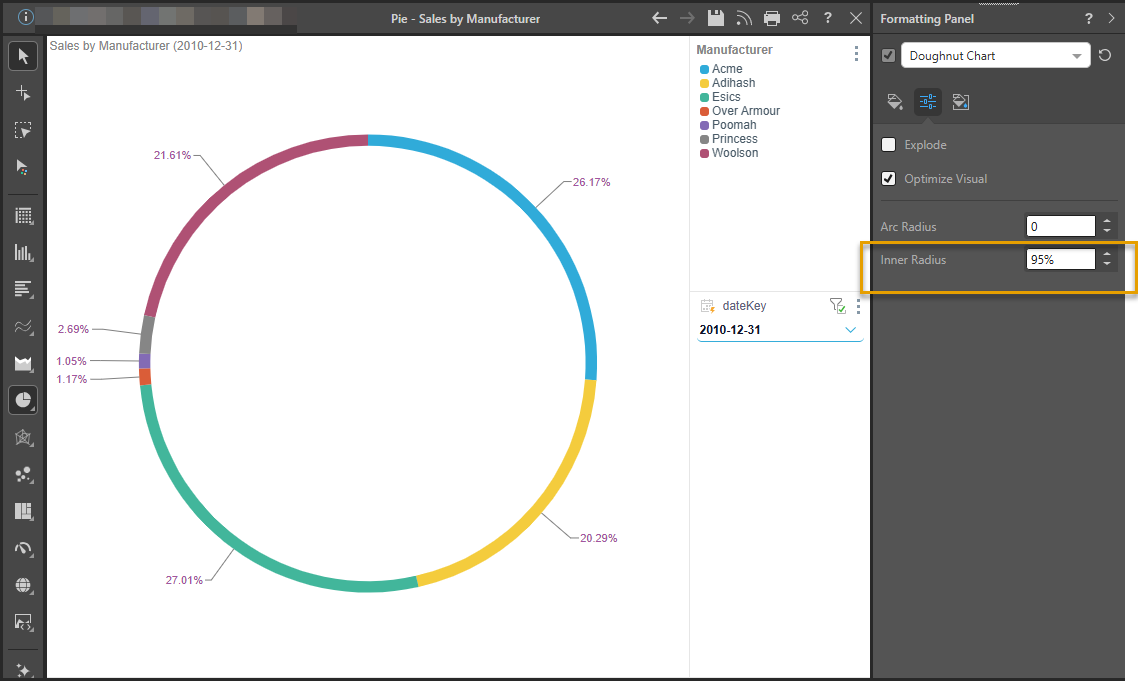
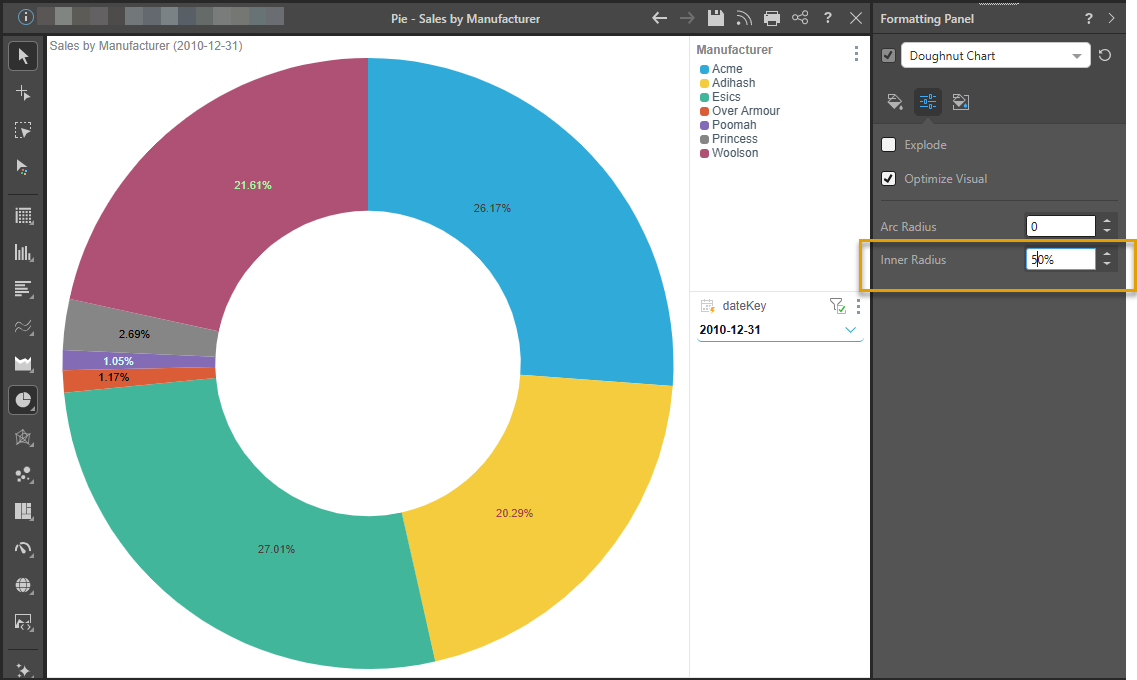
Doughnut Charts only. Inner Radius sets the size of the hole in the middle of a doughnut chart. The value is a percentage between one and 99 percent, relative to the chart's outer radius. Specify a low value to create a thick doughnut ring with a small inner hole or a high value to create a thin ring with a larger inner hole.
 Example: Adjust Doughnut Ring Thickness
With an Inner Radius of 95%, the inner radius is almost the same as the outer radius. This makes the doughnut ring extremely thin and the inner edge of the doughnut very close to the outer edge of the pie:
Reduce the Inner Radius value to make the Doughnut Ring "thicker":
Miniature
 Miniature Color 1, 2, and 3 set the text colors for miniature visuals, which appear automatically when a visual is scaled down due to legibility limits. These miniatures show measure values and labels for quick reading in limited space. Use the Color Picker to set the color for each miniature tile.
Example: Miniature Colors
Miniature visuals are created automatically when you scale a visual down to a size that makes its content illegible. These tiles typically display the measure as a number with its name underneath:
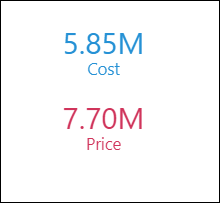
Note: The purpose of a miniature visual is to provide a way to easily view and interpret important data at a glance, even where there is a lot of information and limited space.