Color Picker
The Color Picker is used in several locations across Discover, Illustrate, Present, Publish, and Tabulate. It changes the background color of reports, charts, and slides, and font colors for titles, labels, and more. Each color component that can be customized has its own button with a color picker that drives the color for that component only.
Color Types
The color picker offers a few methods for selecting a color, with each method offering a different range of colors. You can choose a color that exists in your currently selected design theme, select from a range of standard colors, or add your own custom colors.
Accessing the Color Picker
There are several places where you can change the color of some text, the canvas, and so on using the Color Picker, as described above. In each location, the Color Picker is opened from an option with a Paint Pot icon.
For example, the Color Picker can be opened from the Report Background dropdown list on the Design ribbon:

Note: Changing the color using the Report Background color picker in Discover only updates the report's background; all other components (like report title, data labels, and so on) are left unaffected.
Color Picker
Select a Color from one of the sections of the Color Picker:
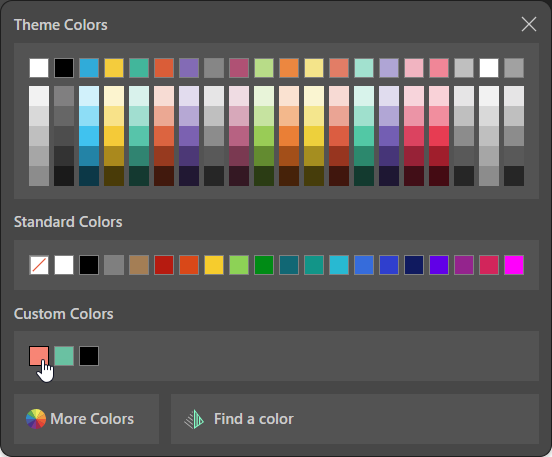
Theme Colors
When any color picker is opened, the first category of colors to choose from is Theme Colors. Theme Colors are all the colors that exist in the currently selected theme. In the preceding image, the chosen theme is Pyramid 2025 and the Theme Colors panel shows all colors associated with that selected theme.
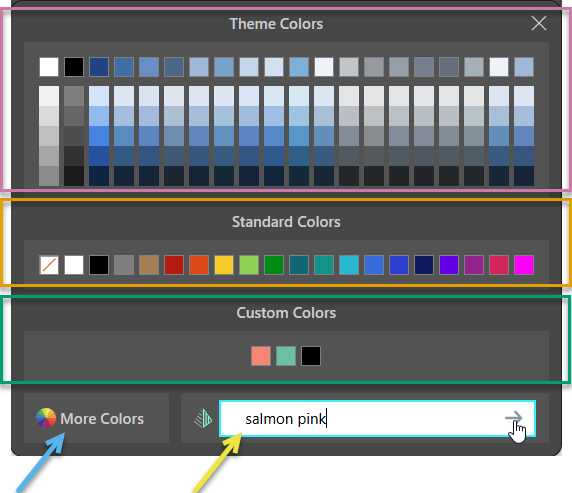
When a different theme is chosen, the Theme Colors are updated accordingly; here the Blue 2021 theme is selected from the theme colors (purple highlight below):
Standard Colors
The Standard Colors menu (orange highlight above) displays the same range of colors regardless of which theme is selected.
Custom Colors
If at least one custom color has already been configured, Custom Colors are displayed beneath the Standard Colors (green highlight).
More Colors
When More Colors is selected (blue arrow above), the Custom Colors dialog opens:
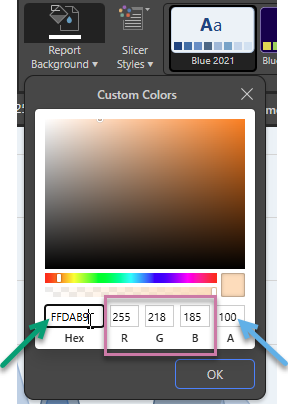
To choose a color, you can click the color from the color window, use the color slider, or change the values in the Hex field (green arrow) or RGB channels (purple highlight). You can also use the alpha channel or transparency slider to change the transparency (blue arrow). Click OK to confirm your custom color selection. Your color selection is applied and added to Custom Colors.
Find a Color using AI
Use the Find a Color feature (yellow arrow) to generate a color using Pyramid's generative AI integration. Your color selection will be applied and added to Custom Colors.
In the preceding example, your underlying LLM (which might be ChatGPT, for example) is used to change the report's background color to a color described as "salmon pink."