The Content Management System (CMS) is pervasive throughout the Analyst application. It lets you organize, access, and manage content items across the system using various views and tools. You can access the CMS through from the App Toolbox on the Home page, the Quick Search option in the Home Menu (top-right), or through the User Hub.
Variations of the functionality can accessed from the Pro client, the Viewer client, and on mobile devices. You can also manage your content through the API.
Opening the CMS
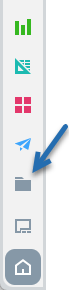
 The CMS is represented by a folder icon, making it easy to identify and access content-related tools and views throughout the application.
App Toolbox
The App Toolbox, found on the Home page, provides a fast link to the content manager (blue arrow below). When clicked, the Content Manager opens with the default view, as defined using the Default Content View setting in your user defaults.
Quick Search
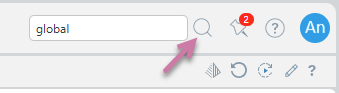
The Quick Search option in the Home menu is a fast way to seed and execute a content search directly from the home page. Click the magnifier to open the search field (purple arrow) and then type a search string into the box to trigger the search framework and run a simple "contains" search query on the repository for the current user.
- Click here to better understand how the Content Search works
User Hub
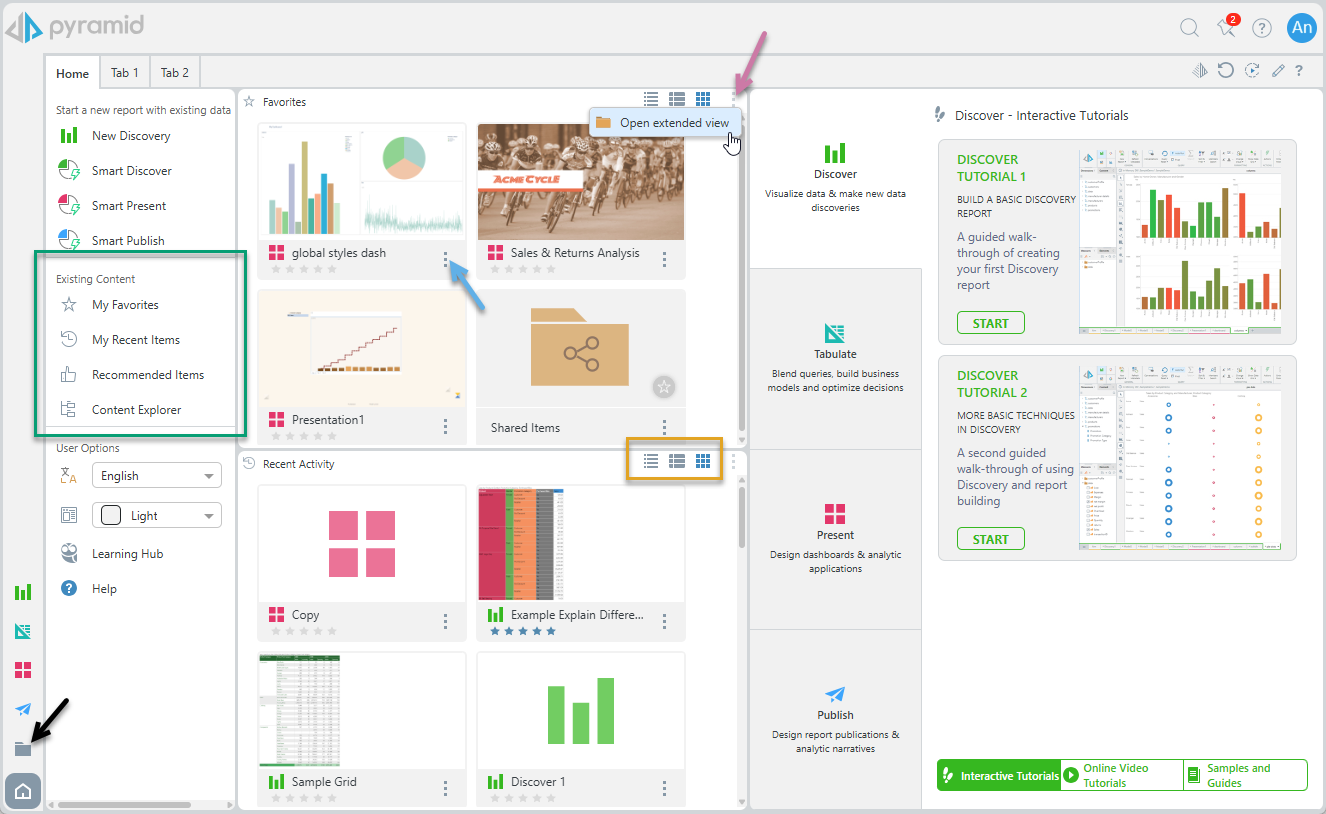
Other access points for content include the favorites and recent listing panels found in the User Hub (this dashboard is shown if users choose to hide the Quick Start and Learning center panel):
Content Views
Your User Hub may include one or more containers that include Content Views, for example, Favorites and Recent Activity containers. You can show the content items in these containers as tiles, details, or content views (orange box above), jump from the container to the Content Manager using Open Extended View (purple arrow), and interact with the content items themselves using their context menus (blue arrow).
Welcome
Your User Hub may include the Welcome widget preset, which includes the Existing Content panel (green box above). You can use the links inside this panel to open the basic Content Views.
- Click here for more information about navigating the User Hub
App Tabs
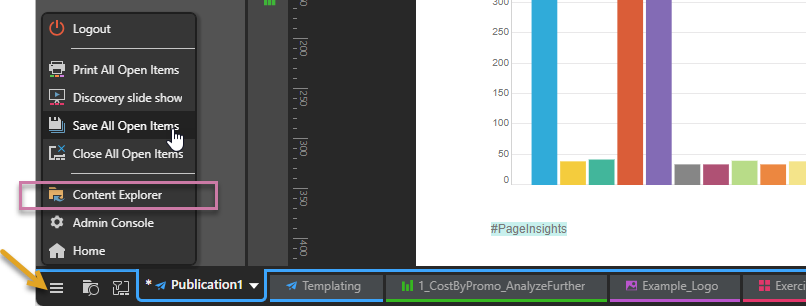
Once apps are opened (either by starting new sessions or opening existing content items), the application interface changes into App Tab mode. From here, you can open the Content Manager or to return to the home page using the App Tab Home Menu (orange arrow below).
Related information
App Tabs
This topic focuses on the Content Manager, where you can explore and organize your content items. However, when you open an app (either by starting a new session or accessing existing content items) the interface switches to App Tab mode, allowing you to create and edit individual items. You can move between these modes using the Home page, as described above.
- Click here for more information about App Tab mode
Other Access and Management Functions
There are other tools and options that describe similar "access" functions, but outside of the Content Management System itself. These include Quick Open and the App Tab Search for accessing content items in the App Tabs view, and Open and Save options for managing your open content items.
- Click here for more information about these other functions